2 guides ready to print - choose Save as PDF in the print window for a handout. Back to the help centre

TinERP user guide

Managers

Managers and team leads · Your team's leave and timesheets: who's off, what's waiting, and deciding it.

Printed 28 November 2026 · the latest version is always in the help centre online

Contents

Managers

  1. Your team's leave
  2. Approve your team's timesheets

Managers · Managers · about 4 min

Your team's leave

If people report to you, you have My team in My workspace. It covers your department and everyone in your reporting line - HR keeps who reports to whom on each employee's record.

1. Start from your dashboard

The People card on your dashboard shows who is off today, under the headcount by department. Waiting for your decision lists everything that needs you, your team's leave requests and timesheets included.
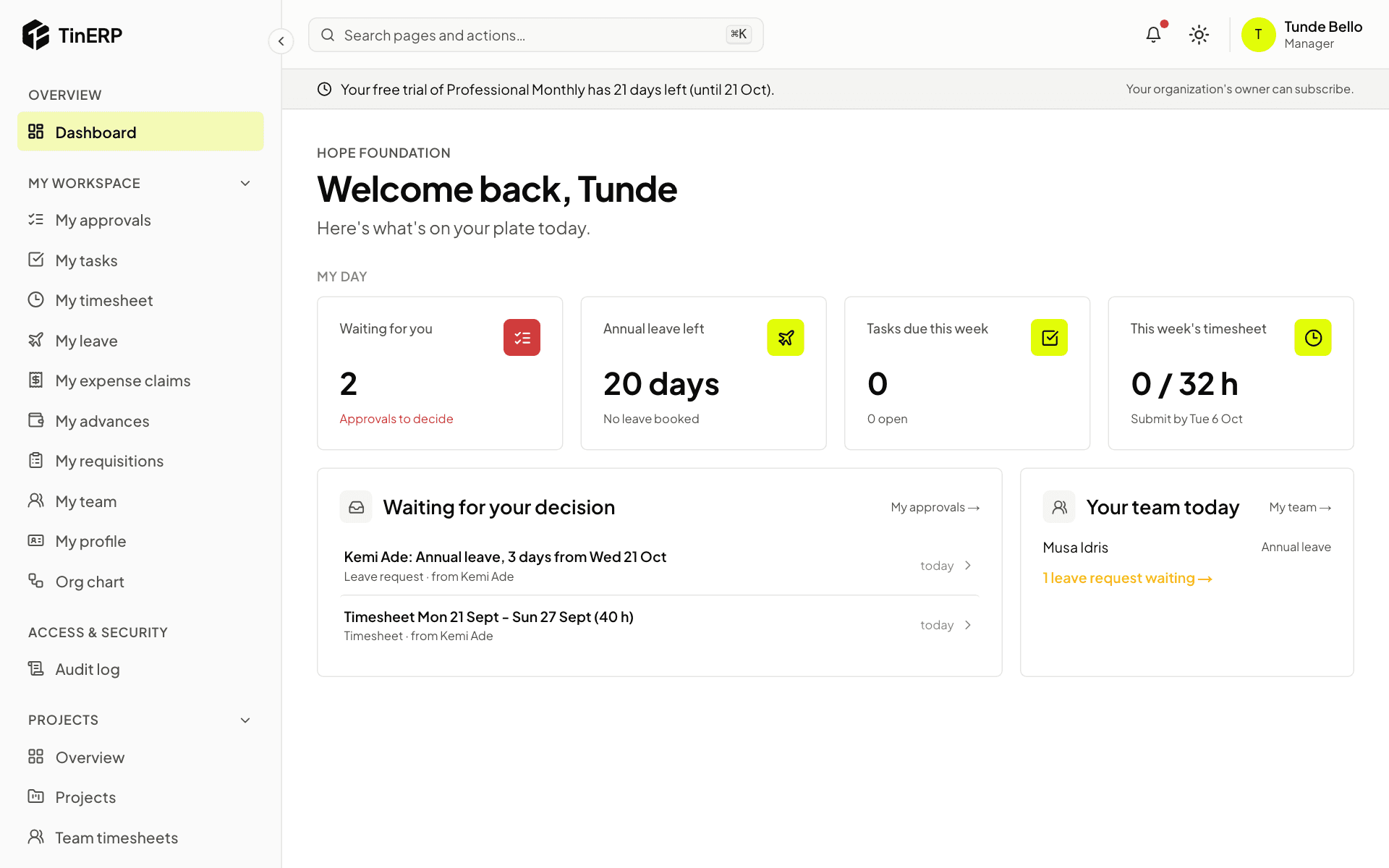
Tunde's dashboard: the People card, with who is off today

2. See balances and requests

Go to My workspace → My team. Waiting for approval lists your team's leave requests that haven't been decided. Below it, the table shows how many days each person has left of every leave type, and what they have waiting.

Search for someone, filter by department, or Export the table.
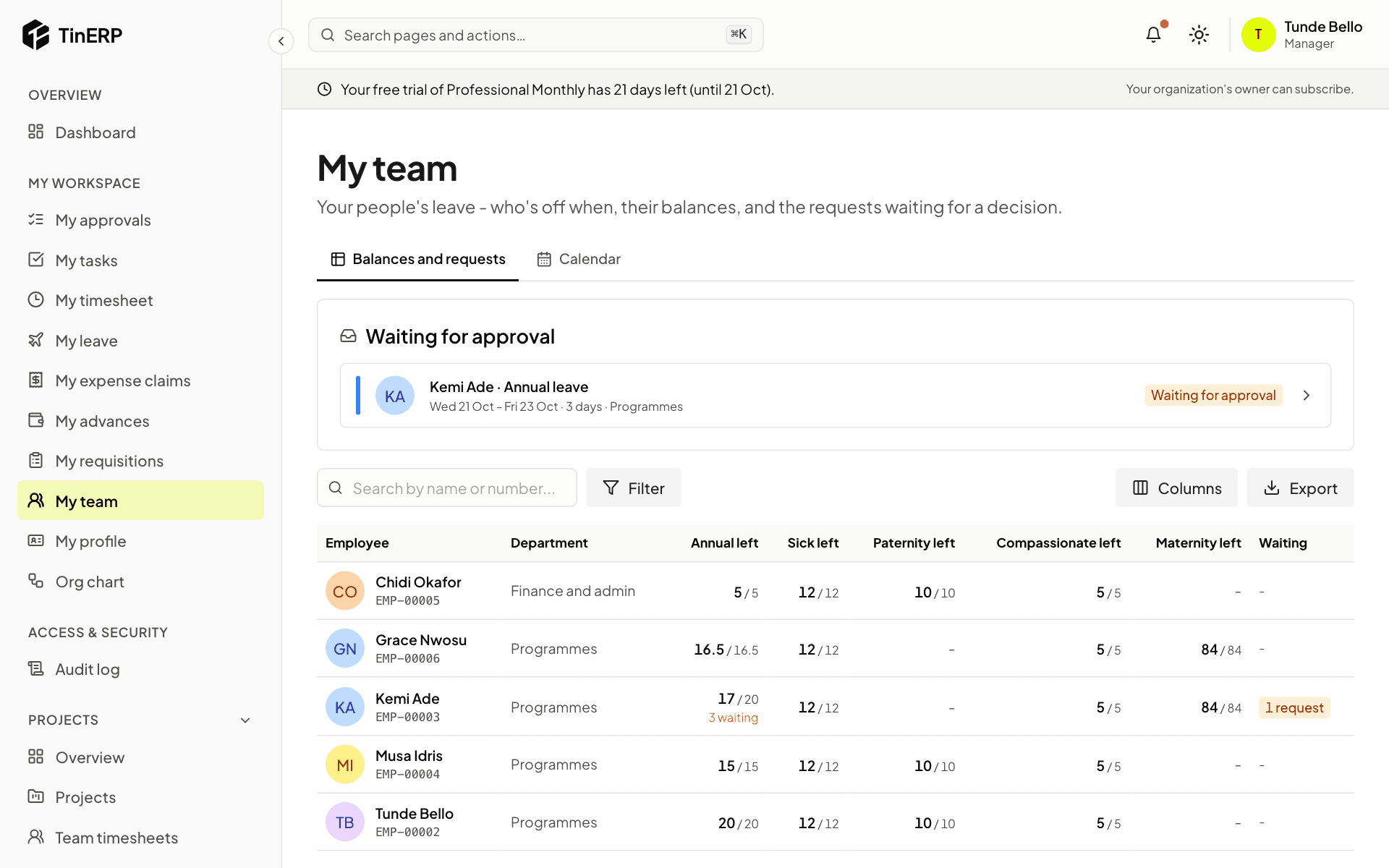
My team: Kemi's annual leave waiting for approval, and everyone's balances by leave type

3. Check the calendar

Select Calendar for the month at a glance: approved leave, requests still waiting (shown faintly), public holidays, and the birthdays of people who chose to share them.

Move between months with the arrows, switch to List, filter by department or branch, and select the kinds of event at the top to show or hide them.
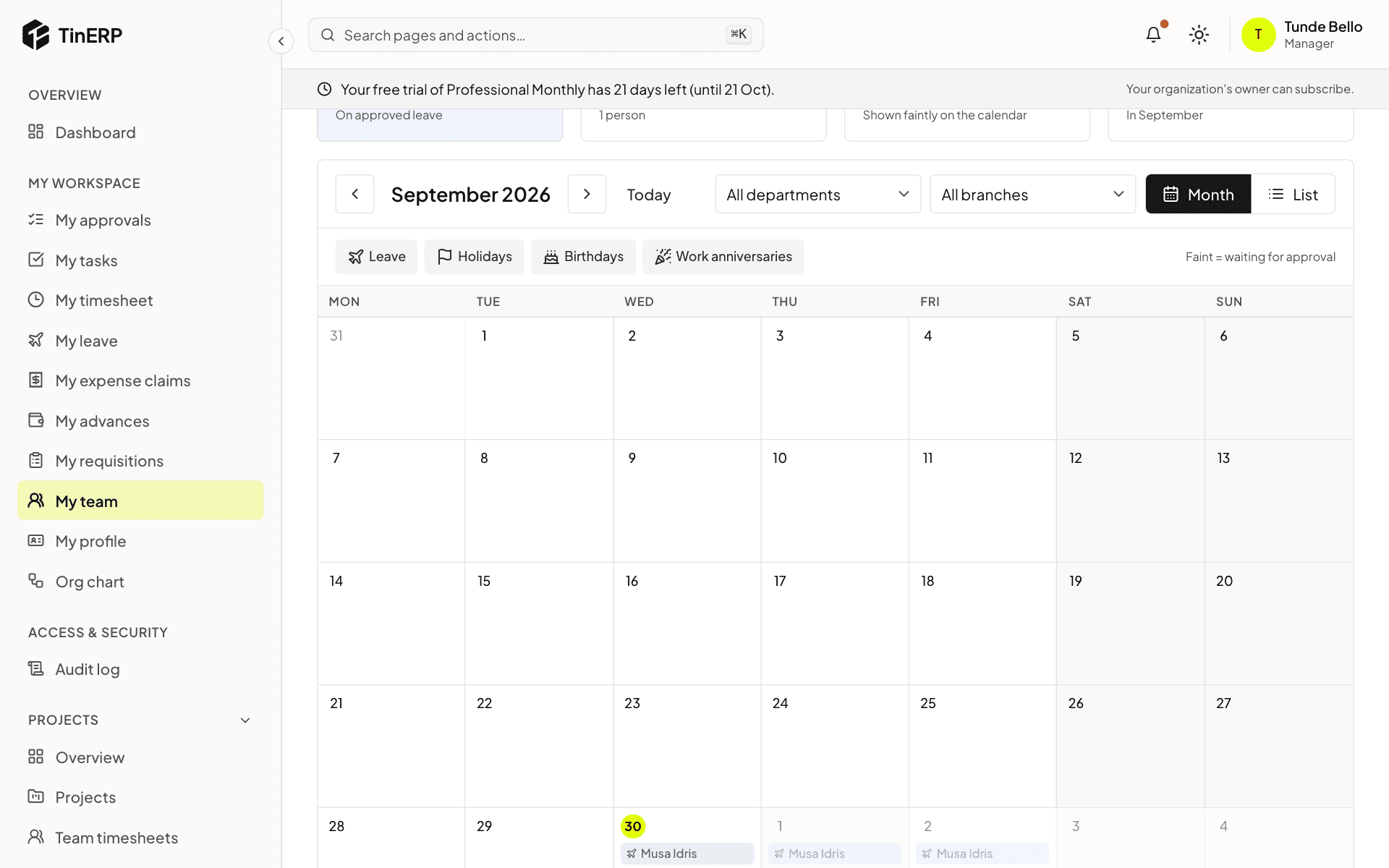
The team calendar for the month, with leave, holidays and the event types at the top

4. Decide a request

Open a request to see the dates, the days it takes, the reason, the relief officer and the handover notes.

Choose Approve (1), Send back (2) if something needs changing, or Reject (3). When you send back or reject, say why - they see your note. Approved days come off their balance straight away.
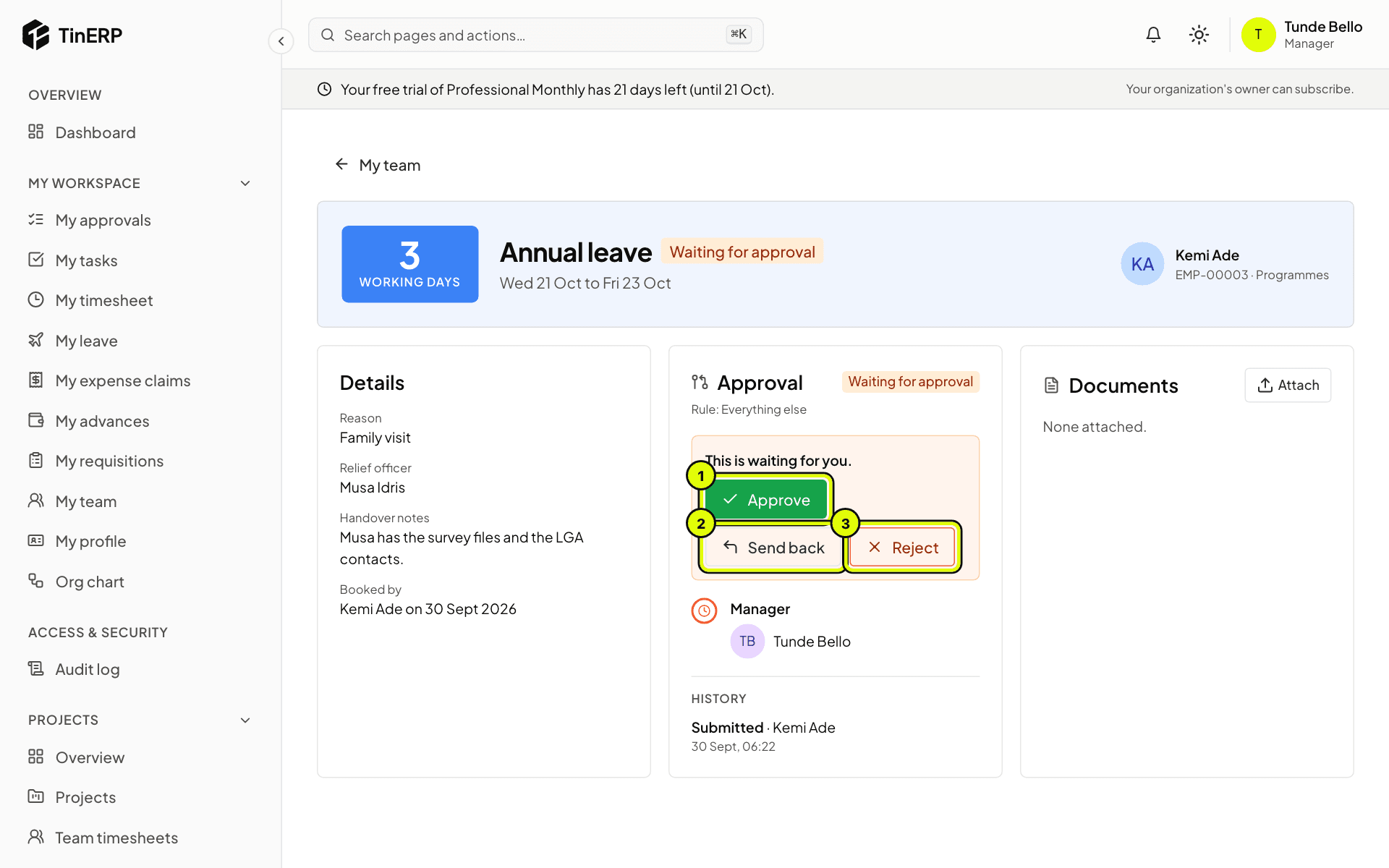
Kemi's leave request with the Approve, Send back and Reject buttons marked 1 to 3

Tip: You can also decide from My workspace → My approvals, together with everything else waiting for you.

Questions

Someone is missing from My team - why?

My team follows the reporting lines on employee records. Ask HR to check the person's manager and department.

Can I book leave for someone in my team?

No - people book their own in My leave. HR books leave for people who don't sign in to TinERP, such as drivers.
Managers · Managers · about 3 min

Approve your team's timesheets

Timesheets go to each person's line manager, unless your organization's approval rules say otherwise. You're notified when one is submitted, and it waits for you in My approvals.

1. See who has submitted

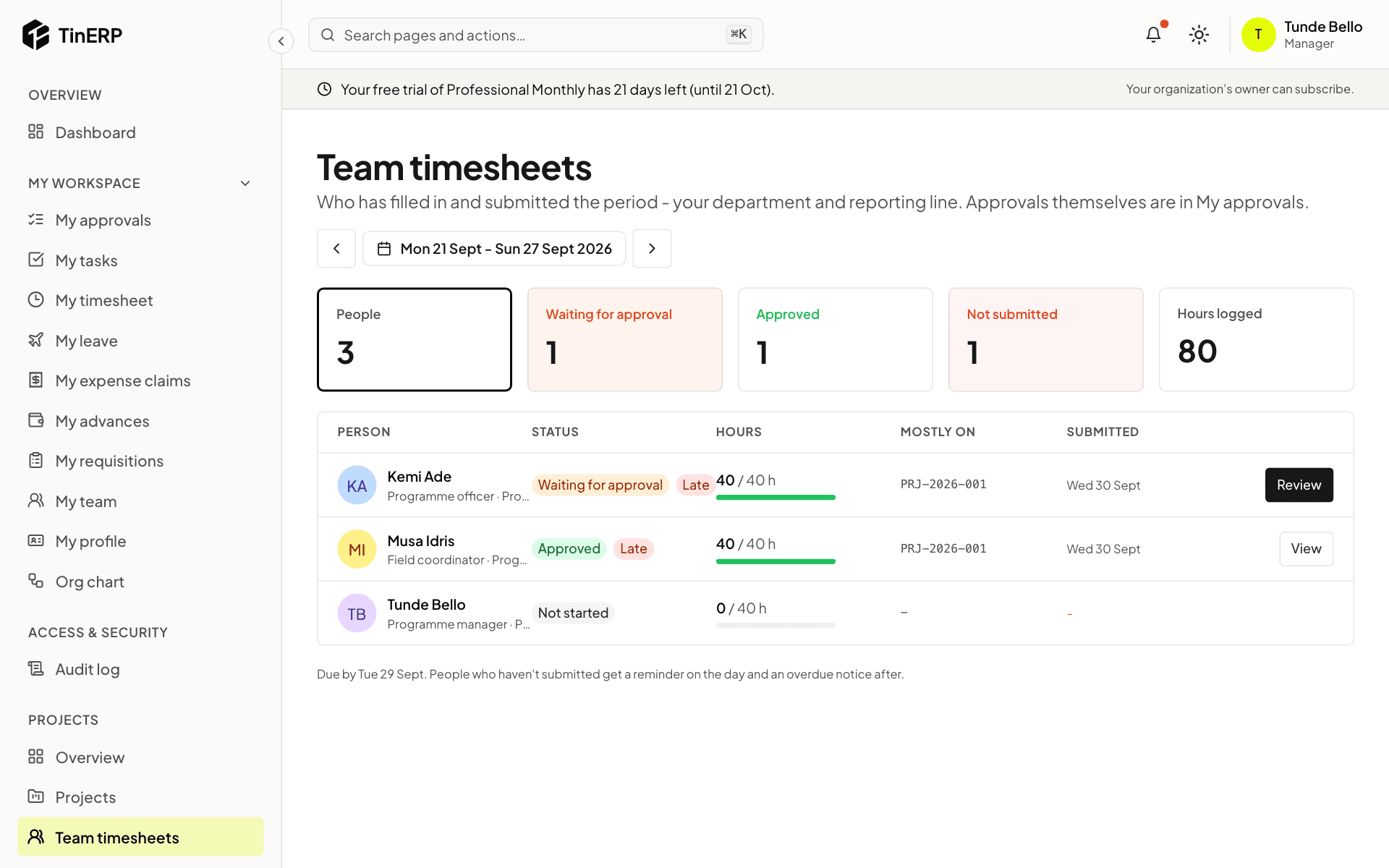
Go to Projects → Team timesheets. For each person you see the status of their timesheet, their hours against the hours expected of them, the projects they worked on most, and when they submitted. Late ones are marked.

Everyone on an open project is listed - internal projects included, unless the project has Members fill in timesheets turned off - so you also see who hasn't started.

Expected hours already allow for each person's approved leave and the holidays at their branch. Use the arrows to move between periods.

Team timesheets for last week: Kemi's waiting for approval and Musa's approved

2. Check it and decide

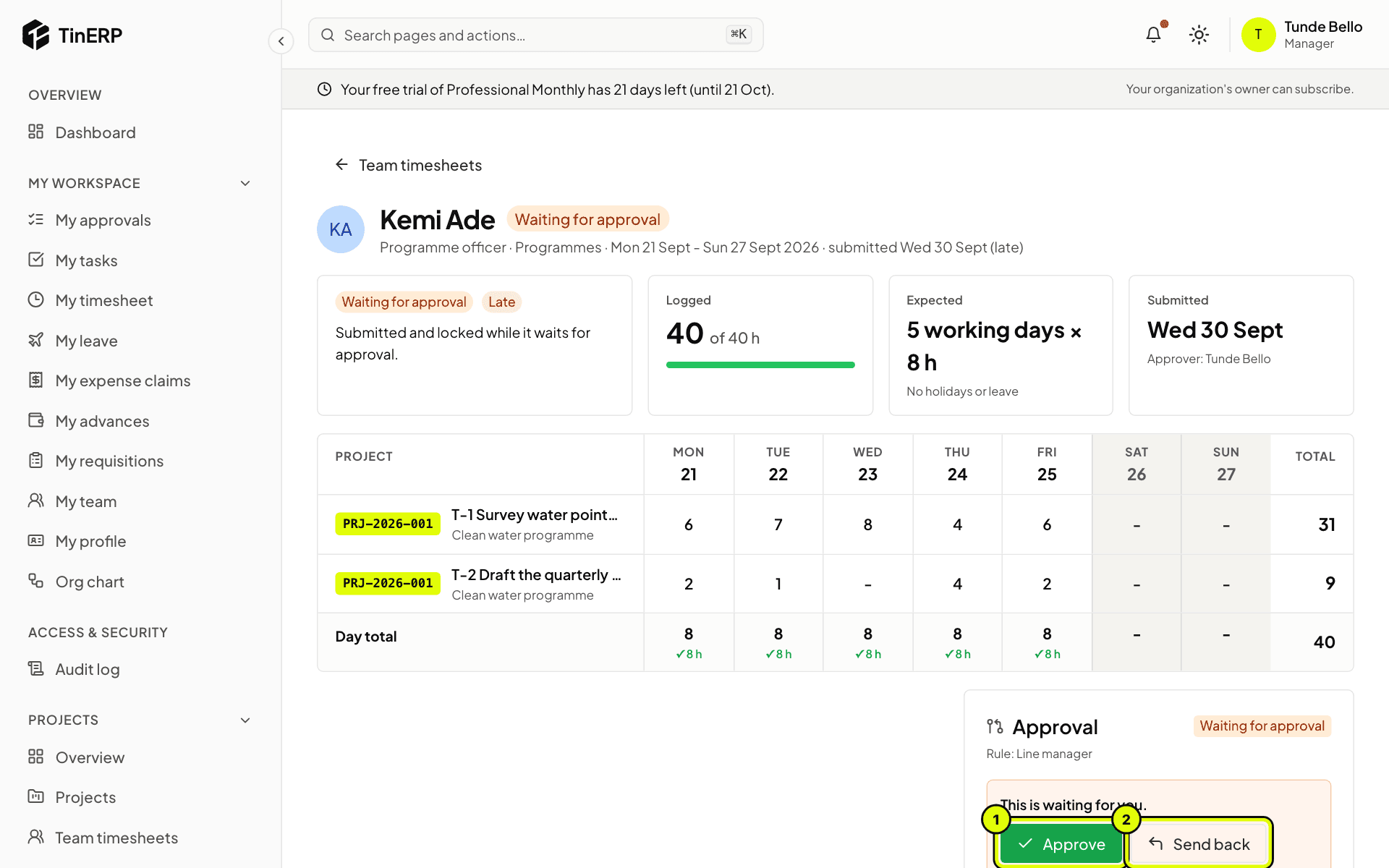
Select Review next to a timesheet waiting for you (or View for any other) to open it: hours by project (or task) and day, the day totals, and the hours expected.

At the bottom, choose Approve (1), or Send back (2) and say what to change - the timesheet opens again for them to correct and submit. Approved timesheets are locked.

Kemi's timesheet with 40 of 40 hours and the Approve and Send back buttons marked 1 and 2

Tip: You don't need to chase people: everyone who hasn't submitted gets a reminder on the day it's due and an overdue notice after.