HR · HR teams · about 5 min
Set up grades, positions and checklists
Do this before adding employees: their records use grades and positions, and new joiners get the onboarding checklist.
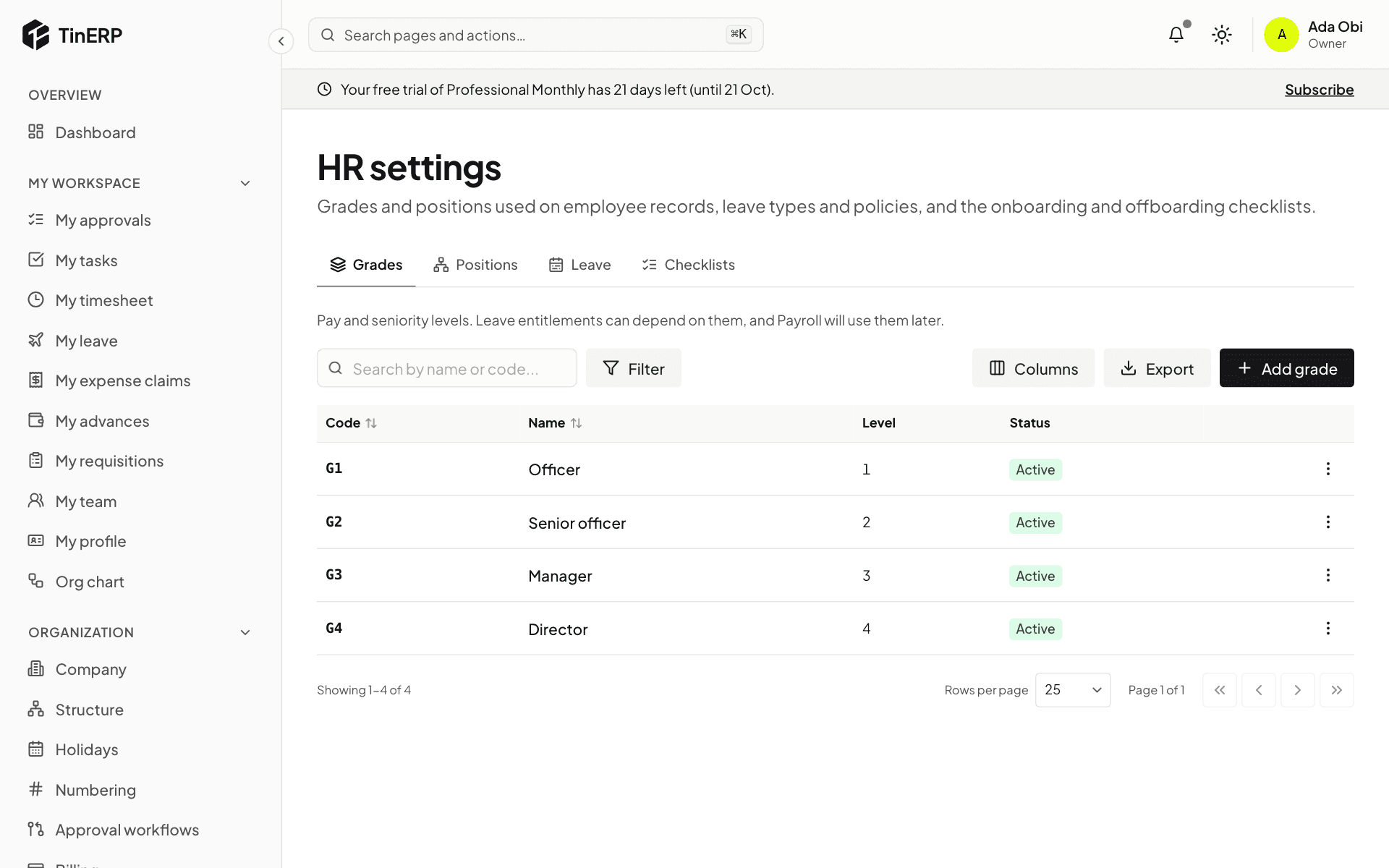
1. Add your grades
Go to HR → HR settings. Under Grades, select Add grade and give it a code, a name and a level. Leave allowances can depend on grade - for example more annual leave for managers.
2. Add positions (optional)
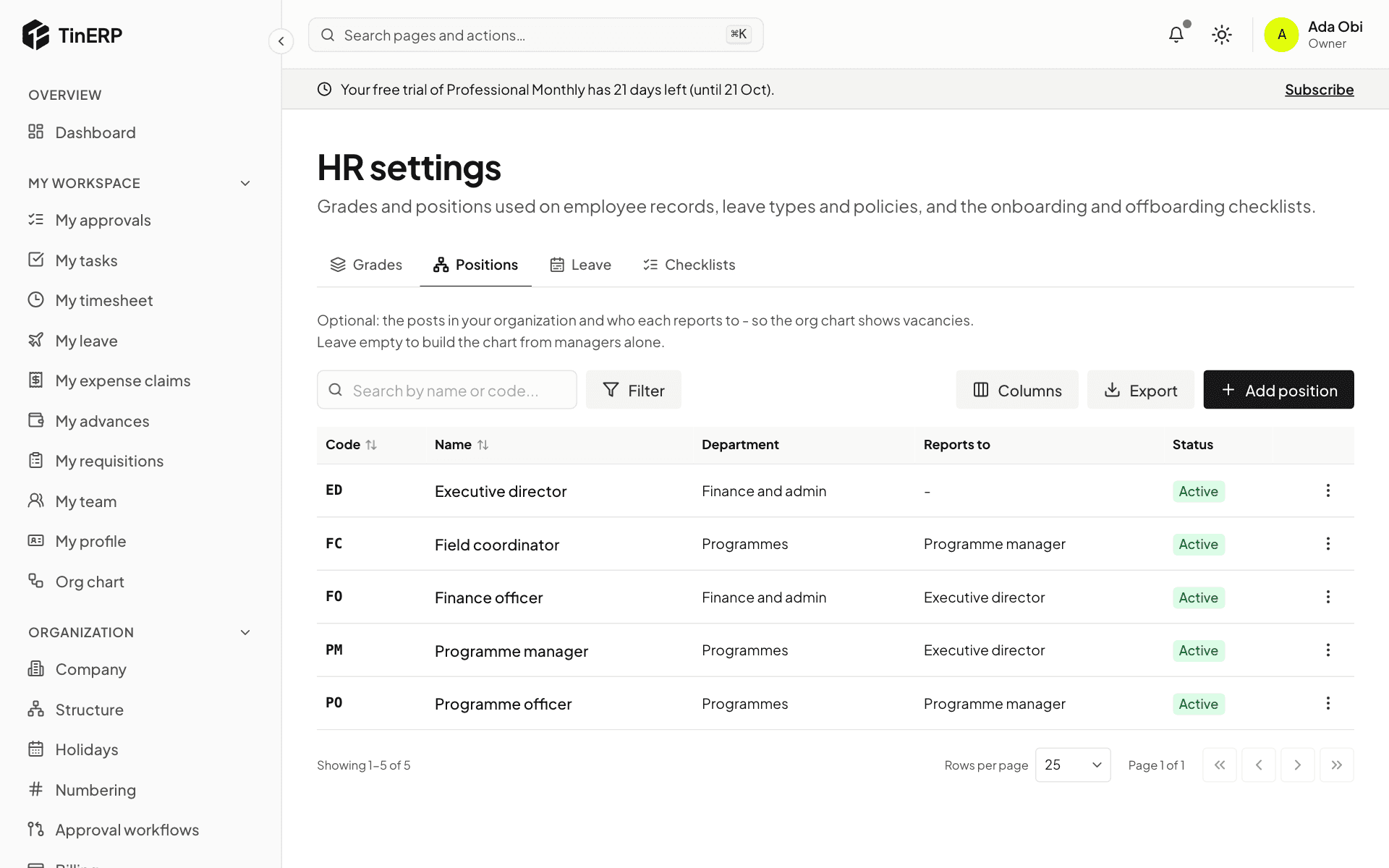
Under Positions, select Add position for each post in your organization, with its department and the post it reports to. Posts nobody holds show on the org chart as vacancies.
Small organizations can skip this: the org chart is then built from each employee's manager.
3. Check your checklists
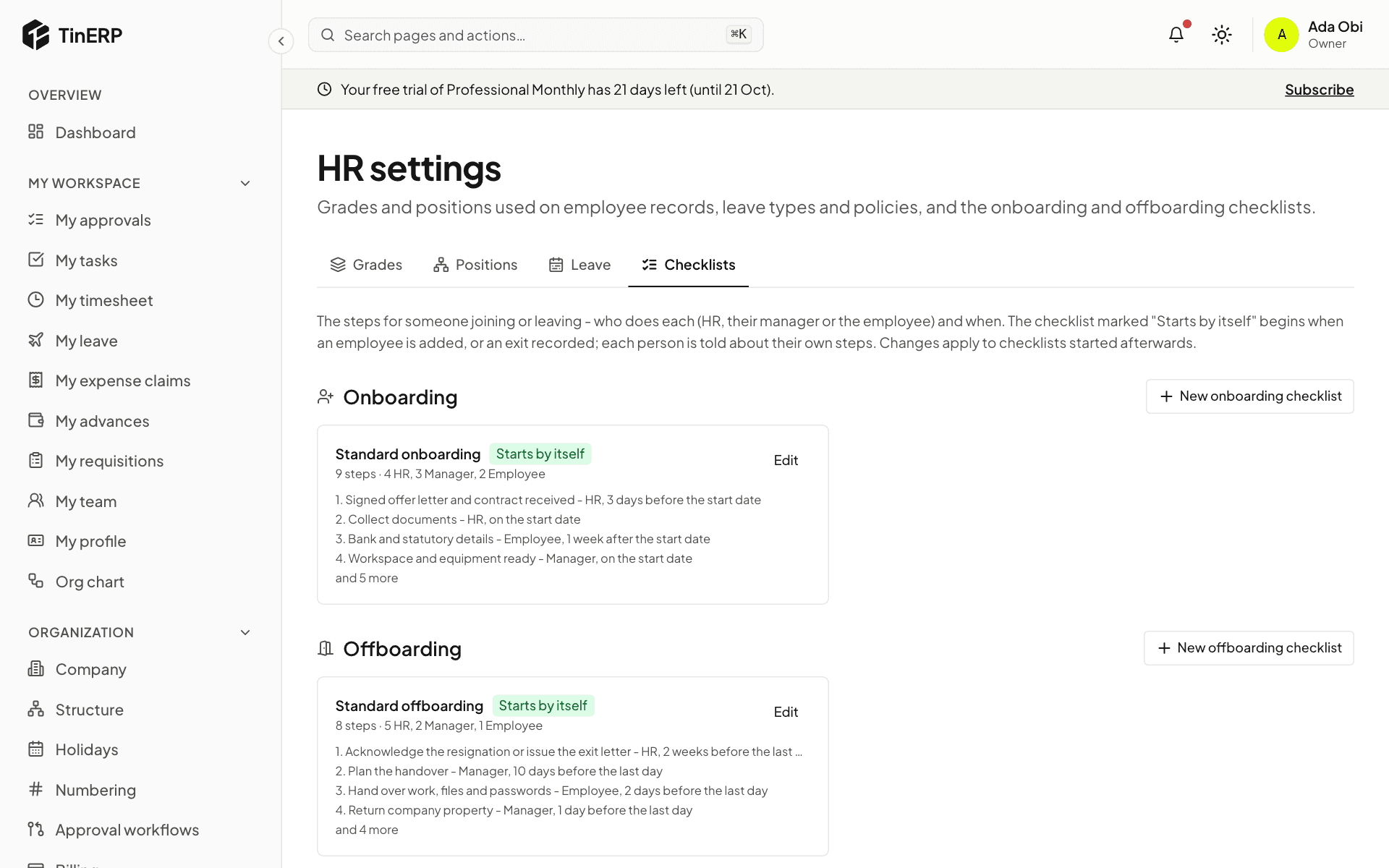
Under Checklists, TinERP starts you with a Standard onboarding and a Standard offboarding. Each step says who does it - HR, the person's manager, the employee, or a department such as IT or Finance - and when, counted from their start date or last day.
Select Edit to change the steps, or add your own checklists. The one marked Starts by itself begins when you add an employee or record an exit.
For a step another department does - setting up a laptop and email, settling advances at exit - choose A department under Done by, then the department. Everyone in that department sees the step in My workspace → My checklist steps and can tick it off; once one person does, it's done for all of them. The department's head is told when a checklist starts.
Tip: Give each department with steps a head (Administration → Structure → Departments): if it has none, HR is told about its steps instead. Changing a checklist affects checklists started afterwards - ones already in progress keep their steps.